# Create Controls

#### Save a Node As Control

Save nodes as control using:

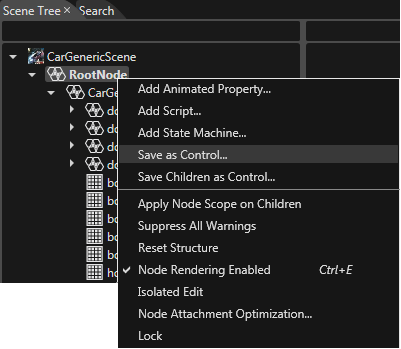
<div class="contents" id="bkmrk-%22save-as-control%22-co"><div class="contents"><div class="textblock">- "Save as Control" context menu item on a selected node in the Scene Tree panel. The new control will contain both node and all its children.
- "Save Children as Control" context menu item on a selected node to create the control only from the node children. In this case, the control won't inherit the parent node's actual position, but will have default transformation properties instead.
<div drawio-diagram="2135"><img src="https://doc316en.candera.eu/uploads/images/drawio/2023-02/drawing-7-1676970201.png" alt=""/></div>

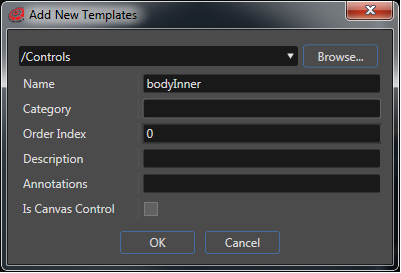
</div></div></div>In the "Add New Template" dialog, a location within the solution and a name for the new control is defined.

<div class="contents" id="bkmrk-"><div class="contents"><div class="textblock"><div drawio-diagram="2136"><img src="https://doc316en.candera.eu/uploads/images/drawio/2023-02/drawing-7-1676970213.png" alt=""/></div>

</div></div></div>The new control will be available in the

<div class="contents" id="bkmrk-solution-explorer-pa"><div class="contents"><div class="textblock">- Solution Explorer panel, and in the
- Toolbox -&gt; Controls.

</div></div></div>Open the control for editing with a double click.

<div class="contents" id="bkmrk--0"><div class="contents"><div class="textblock">---

</div></div></div>#### Create an Empty Control

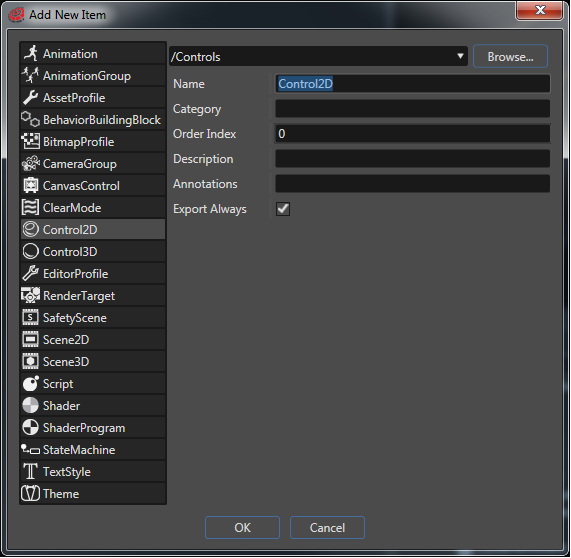
In Solution Explorer, use the context menu "Add New Item" to create a new control.

<div class="contents" id="bkmrk--1"><div class="contents"><div class="textblock"><div drawio-diagram="2137"><img src="https://doc316en.candera.eu/uploads/images/drawio/2023-02/drawing-7-1676970229.png" alt=""/></div>

---

</div></div></div>