# Control Center Menu
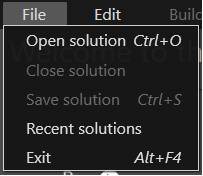
With the "File" menu you can:
- open a solution
- close the current solution
- save the current solution
- open recent solutions from a list
- exit the Control Center
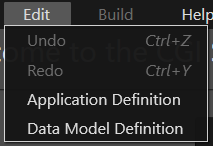
In the "Edit" menu you can undo or redo your changes.
You can also open Visual Studio to edit Application Definition or Data Model Definition (like in [Custom "Courier" Section](https://doc316en.candera.eu/link/1121#bkmrk-custom-%22courier%22-sec))
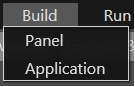
The "Build" menu lets you build the Panel (like in [Build Panel](https://doc316en.candera.eu/link/1121#bkmrk-build-panel)) or the Application (like in [Build Application](https://doc316en.candera.eu/link/1117#bkmrk-build-application)). This menu is not available on the welcome screen and requires that a Control Center solution be in use.
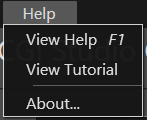
Through the "Help" menu you can choose to view a Help documentation, tutorials, or information about the Control Center application itself.
---