# New Project

A new project can be created from the Welcome Screen or via the menu bar (File &gt; New Project) or via the shortcut “Ctrl + N”. This will open additional windows to help setting up the new project.

#### Template-Selection

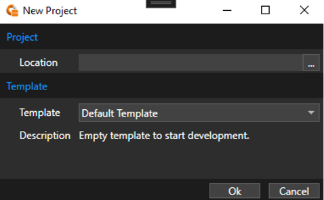
In the Template-Selection screen the user needs to first select the location where the new project shall be stored and select which template shall be used as a starting point for the project.

A template usually contains premade application code, build scripts, tooling related files and predefined project settings.

<div drawio-diagram="8325"><img src="https://doc316en.candera.eu/uploads/images/drawio/2025-04/drawing-7-1744868171.png" alt=""/></div>

#### Setup

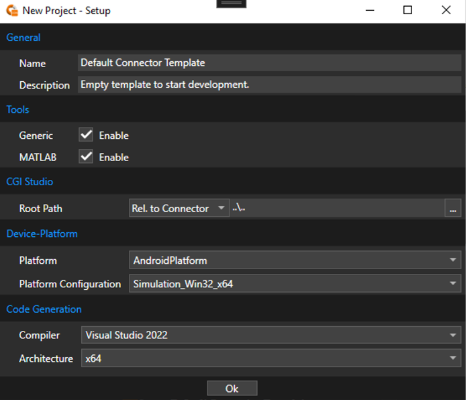
On the next screen the user can configure the most important project settings.

##### General

<table border="1" id="bkmrk-property-name-descri" style="width: 76.7857%;"><tbody><tr><td class="align-center" style="background-color: rgb(230, 126, 35); width: 22.4806%;"><span style="color: rgb(255, 255, 255);">**Property Name**</span></td><td class="align-center" style="background-color: rgb(230, 126, 35); width: 77.5194%;"><span style="color: rgb(255, 255, 255);">**Description**</span></td></tr><tr><td style="width: 22.4806%;">Name</td><td style="width: 77.5194%;">Name of the project.</td></tr><tr><td style="width: 22.4806%;">Description</td><td style="width: 77.5194%;">Description of the project.</td></tr></tbody></table>

##### Tools

<table border="1" id="bkmrk-property-name-descri-1" style="width: 76.7857%;"><tbody><tr><td class="align-center" style="width: 22.3608%; background-color: rgb(230, 126, 35);"><span style="color: rgb(255, 255, 255);">**Property Name**</span></td><td class="align-center" style="width: 77.6416%; background-color: rgb(230, 126, 35);"><span style="color: rgb(255, 255, 255);">**Description**</span></td></tr><tr><td style="width: 22.3608%;">Generic</td><td style="width: 77.6416%;">Enables generic support. This will provide a plain C/C++ interface.</td></tr><tr><td style="width: 22.3608%;">MATLAB</td><td style="width: 77.6416%;">Enables support for MATLAB. This will provide additional options/setting related to MathWorks MATLAB support</td></tr></tbody></table>

##### CGI Studio

<table border="1" id="bkmrk-property-name-descri-2" style="width: 76.7857%;"><tbody><tr><td class="align-center" style="width: 22.24%; background-color: rgb(230, 126, 35);"><span style="color: rgb(255, 255, 255);">**Property Name**</span></td><td class="align-center" style="width: 77.7624%; background-color: rgb(230, 126, 35);"><span style="color: rgb(255, 255, 255);">**Description**</span></td></tr><tr><td style="width: 22.24%;">Root Path</td><td style="width: 77.7624%;">Path to CGI Studio package. The path can be either absolute or relative to CGI Connector/Project paths.</td></tr></tbody></table>

##### Device-Platform

<table border="1" id="bkmrk-property-name-descri-3" style="width: 76.9048%;"><tbody><tr><td class="align-center" style="width: 28.3055%; background-color: rgb(230, 126, 35);"><span style="color: rgb(255, 255, 255);">**Property Name**</span></td><td class="align-center" style="width: 71.6969%; background-color: rgb(230, 126, 35);"><span style="color: rgb(255, 255, 255);">**Description**</span></td></tr><tr><td style="width: 28.3055%;">Platform</td><td style="width: 71.6969%;">Name of the CGI Studio Platform (as found in CMake)</td></tr><tr><td style="width: 28.3055%;">Platform Configuration</td><td style="width: 71.6969%;">Name of the CGI Studio Platform configuration (as found in CMake)</td></tr></tbody></table>

##### Code Generation

<table border="1" id="bkmrk-property-name-descri-4" style="width: 76.7857%;"><tbody><tr><td class="align-center" style="width: 28.062%; background-color: rgb(230, 126, 35);"><span style="color: rgb(255, 255, 255);">**Property Name**</span></td><td class="align-center" style="width: 71.938%; background-color: rgb(230, 126, 35);"><span style="color: rgb(255, 255, 255);">**Description**</span></td></tr><tr><td style="width: 28.062%;">Compiler</td><td style="width: 71.938%;">Compiler used to build code.</td></tr><tr><td style="width: 28.062%;">Architecture</td><td style="width: 71.938%;">Architecture used to build the code.</td></tr></tbody></table>

<div drawio-diagram="8326"><img src="https://doc316en.candera.eu/uploads/images/drawio/2025-04/drawing-7-1744868266.png" alt=""/></div>

<p class="callout info">These, and more, settings can later be changed. For more information, please refer to the <span style="color: rgb(230, 126, 35);">[“Project Settings”](https://doc316en.candera.eu/books/cgi-studio-connector/page/project-settings)</span> chapter.</p>

#### Custom Templates

It is possible to add custom templates to the CGI Connector. This can be useful to apply customizations from a project to other projects.  
To create a template, pack all needed content into a ZIP file. Make sure that it contains the CGI Connector-Project file (.cop) in the root. Then add an entry to the “Templates.xml” in “cgi\_studio\_connector/bin” where the name, description and file location needs to be specified. Note that the file location is relative to the CGI Connector binaries.

---