# SceneComposer V3.0.4

# Amber Platform Support

#### Amber Platform Support

The new platform - Amber - is strongly related to the new supported API - OpenGLES1.1. OpenGLES1.1 provides less features than OpenGLES3.0. The most important missing feature is the programmable pipeline - (Shader configurations). On Amber platform, one cannot create shaders. However, the platform is simulated over OpenGLES3.0 so there are some pre-defined shaders that emulate the specific 1.1 functionality.

In order to accommodate SceneComposer to Amber platform, several changes were done/are currently under development (Mantis 5393):

**Shaders:**

<div class="contents" id="bkmrk-following-shader-%28su"><div class="contents"><div class="textblock">- Following Shader (substitutes) shall be exposed: Default Shader; BRDF Lighting Shader; Emission Texture Shader; Gradation Texture Shader.
- ShaderParamSetters (UniformSetters) remain and are required to set parameters of special effects, like BRDF.
- Shader Editor shall be read only. This allows at least to introspect usage of the effect parameters.
- Disallow creation and import of new shaders.
- Target Shader Compiler replaces effects with binary identifier in asset.

</div></div></div>**Textures:**

<div class="contents" id="bkmrk-amber-supports-two-d"><div class="contents"><div class="textblock">- Amber supports two default or three BRDF textures
- SceneComposer shall allow three textures in general and throw warning if three textures are used with any other shader than BRDF
- If two default textures are used, internally the default blend mode is applied \[Alpha blending with src\*(srcAlpha) + dst\*(1-srcAlpha)\]
- No option to set (other) blend mode for multi-texturing.
- Tangients in VertexBuffer required for BRDF textures can be generated by SceneComposer

</div></div></div>**Render Mode:**

<div class="contents" id="bkmrk-alpha-blend-values-a"><div class="contents"><div class="textblock">- Alpha Blend Values are ignored, BackStencil function and operation are ignored.

</div></div></div>**[Candera](http://dev.doc.cgistudio.at/APILINK/namespace_candera.html "[DataBinding_RefTypeSample]") Objects in Toolbox to remove:**

<div class="contents" id="bkmrk-morphing-mesh%2C-stere"><div class="contents"><div class="textblock">- Morphing Mesh, Stereo Camera, SkyBox, Cube Map, Point Sprite.

</div></div></div>**Render Targets:**

<div class="contents" id="bkmrk-remove-conformant-pr"><div class="contents"><div class="textblock">- Remove Conformant Property (EGL Conformance)

</div></div></div>**Lights:**

<div class="contents" id="bkmrk-8-lights-are-support"><div class="textblock">- 8 Lights are supported. Range property is ignored. All light types supported.

</div></div><p class="callout info">Info - in simulation, Amber P renders objects without effects (default shader is associated) with OpenGL 1.1 API without shaders. SC Gizmos plus objects with special effects are rendered with OpenGL 2.0 via RenderDevice Extension.</p>

---

# SceneComposer Usability Improvements

#### Disable Widgets

In the "Preferences" menu, two new options for disabling widgets were added:

<div class="contents" id="bkmrk-enable-widget-instan"><div class="contents"><div class="textblock">- Enable widget instantiation - true by default. If this option is disabled, the widgets will still be accessible in the solution, but they will not be instantiated by SCHost.

- Enable widget update - true by default, indicates whether or not the widgets will be updated.

<dl class="see"><dt>**See also:**</dt><dd>- <span style="color: rgb(230, 126, 35);">[Widgets](https://doc316en.candera.eu/link/102#bkmrk-page-title)</span> in SceneComposer User Manual

</dd></dl>---

</div></div></div>#### Convert Shaders

If any shaders or shader programs were modified or added in the new version of SceneComposer, the user will be notified during the conversion process. He will have to choose whether to replace them or not. In order to fulfil this operation in a suitable way, the user has the possibility to select those old shaders which has to be replaced with the new solution shaders and shader programs.

<div class="contents" id="bkmrk-see-also%3A-convert-so"><div class="contents"><div class="textblock"><dl class="see"><dt>**See also:**</dt><dd>- <span style="color: rgb(230, 126, 35);">[Convert Solution](https://doc316en.candera.eu/link/42#bkmrk-convert-a-solution)</span> in SceneComposer User Manual

</dd></dl>---

</div></div></div>#### 2D Nodes: Object Inspector

Because of the difficulty to determine the absolute position or the effective size of a specific 2D node - especially when different layouters are used, an "Object Inspector" has been added. Due to this feature, now it is possible to display the following properties of a 2D node: Position, Scale, Rotation and BoundingBox.

WorldPivotPosition, WorldPosition and WorldBoundingBox can also be displayed in the Scene Editor panel. This feature is disabled by default and can be enabled in "Preferences" &gt; "Editor" &gt; "2D" &gt; "World Transformations" (Mantis 5456).

<div class="contents" id="bkmrk-see-also%3A-position-o"><div class="contents"><div class="textblock"><dl class="see"><dt>**See also:**</dt><dd>- <span style="color: rgb(230, 126, 35);">[Position of 2D Nodes](https://doc316en.candera.eu/link/147#bkmrk-position-of-2d-nodes)</span> in SceneComposer User Manual

</dd></dl>---

</div></div></div>#### Preserve Imported Folder Structure

In the "Import" dialog window a new option was added: "Preserve imported folder structure". This option allows the user to import, simultaneously, many items without putting them together in the same folder.

<p class="callout info">If a bunch of images are imported, any of them can be added in a folder instead of being added - all of them - together in the same folder.</p>

It is available for the following imports: FBX, images, custom imports. This feature can be used only if the "Delete existing items in destination folder" is checked. Otherwise it will be unavailable and unchecked (Mantis 5444).

<div class="contents" id="bkmrk-see-also%3A-preserve-i"><div class="contents"><div class="textblock"><dl class="see"><dt>**See also:**</dt><dd>- <span style="color: rgb(230, 126, 35);">[Preserve Imported Folder Structure](https://doc316en.candera.eu/link/74#bkmrk-preserve-imported-fo)</span> in SceneComposer User Manual

</dd></dl>---

</div></div></div>#### Disable Previews

In order to improve the performance of the application, now it is possible to enable/disable previews by checking/unchecking the "Disable Previews" checkbox from "File" &gt; "Preferences" &gt; "Environment" (Mantis 5509).

<div class="contents" id="bkmrk-see-also%3A-disable-pr"><div class="contents"><div class="textblock"><dl class="see"><dt>**See also:**</dt><dd>- <span style="color: rgb(230, 126, 35);">[Disable Previews](https://doc316en.candera.eu/link/92#bkmrk-disable-previews)</span> in SceneComposer User Manual

</dd></dl>---

</div></div></div>#### Import Bitmaps in a Selected Folder

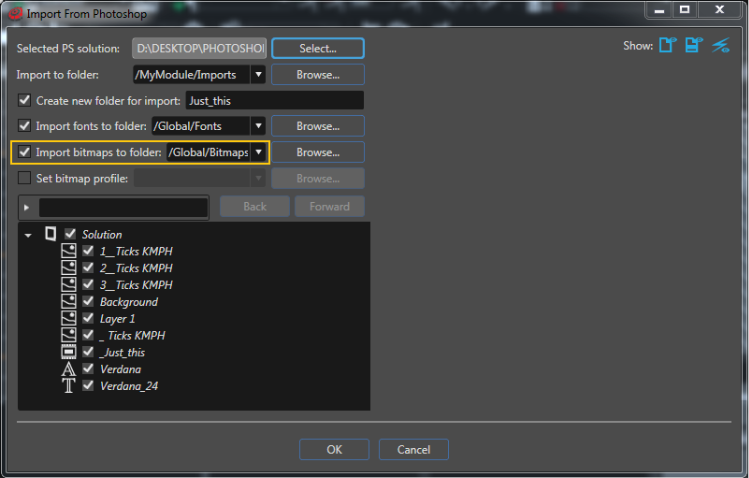
The user will have the possibility to import the bitmaps in a selected folder while using the "Import From Photoshop" dialog which is part of the "Import" menu located on the menu-bar.

To enable this option the checkbox which correspond to "Import bitmaps to folder" must be checked otherwise the bitmaps will be saved together with the other items in the import folder.

<div drawio-diagram="5864"><img src="https://doc316en.candera.eu/uploads/images/drawio/2024-05/drawing-4-1717042373.png" alt=""/></div>

<div class="contents" id="bkmrk-%22import-bitmaps-to-f"><div class="contents"><div class="textblock">  
</div></div></div>If this option is enabled the user will have the possibility to import the bitmaps in a selected folder. The selected folder will be saved after the dialog or the application will be closed and it will be available as predefined folder to import the bitmaps next time when the user will run again the "Import From Photoshop" dialog (Mantis 5484).

<div class="contents" id="bkmrk--2"><div class="contents"><div class="textblock">---

</div></div></div>#### Asset Generation

It is possible now to exclude render targets from the asset. In the previous versions, all the render targets from all the displays were included in the asset. With this change, the asset will contain only those render targets which have the "Export always" property used or are referenced by scenes that are effectively included in the asset (Mantis 5306).

<div class="contents" id="bkmrk-see-also%3A-asset-libr"><div class="contents"><div class="textblock"><dl class="see"><dt>**See also:**</dt><dd>- <span style="color: rgb(230, 126, 35);">[Asset Library](https://doc316en.candera.eu/link/87#bkmrk-asset-library)</span> in SceneComposer User Manual

</dd></dl>---

</div></div></div>#### FTCCmd Support for Setting Bitmap Profile

It is now possible to specify a bitmap profile to be applied to all imported images when invoking FTCCmd.exe (by using parameter /bitmapprofile).

<div class="contents" id="bkmrk-see-also%3A-ftc-comman"><div class="contents"><div class="textblock"><dl class="see"><dt>**See also:**</dt><dd>- <span style="color: rgb(230, 126, 35);">[FTC Command](https://doc316en.candera.eu/link/178#bkmrk-page-title)</span> in SceneComposer User Manual

</dd></dl>---

</div></div></div>#### Minor Improvements

<div class="contents" id="bkmrk-widget-properties.-u"><div class="textblock">- Widget Properties. Until now, if a widget property was not available in SCHost.dll, SceneComposer would silently remove all values of this new property without any notification. Now, if this situation occurs, when opening a solution, the user is notified through a dialog that some of the widget properties were removed. He has the option to continue, thus losing the set properties at the first save, or to quit loading the solution (Mantis 5446).

- Background Color. It is now possible to set the background color for the Scene Editor camera in both 2D and 3D, both locally (for each scene) and globally, for all scenes (Mantis 4833).

- Mipmapping. "Enable mipmapping" property was moved from texture to bitmap. Solutions will have to be converted.

- Changing GUID. The solution GUID will be changed when changing the platform or converting to another version (Mantis 5452).

</div></div>---