# Texture Render Targets

#### <a class="anchor" id="bkmrk--8"></a>Description

This section explains how to handle Texture Render Targets in 2D and 3D.

#### <a class="anchor" id="bkmrk--10"></a>Example Solutions

<div class="contents" id="bkmrk-texturerendertargets"><div class="textblock">- TextureRenderTargetsSolution in folder *cgi\_studio\_player/content/Tutorials/07\_RenderTargetsCameras*
- MixedRenderTargetsSolution in folder *cgi\_studio\_player/content/Tutorials/07\_RenderTargetsCameras*

</div></div>#### **Define Texture Render Targets** 

To illustrate the usage of an OffScreenTarget2D, open the solution cgi\_studio\_player/content/Tutorial/07\_RenderTargetCameras/TextureRenderTargetsSolution.

##### <a class="anchor" id="bkmrk--11"></a>Offscreen Scene Content

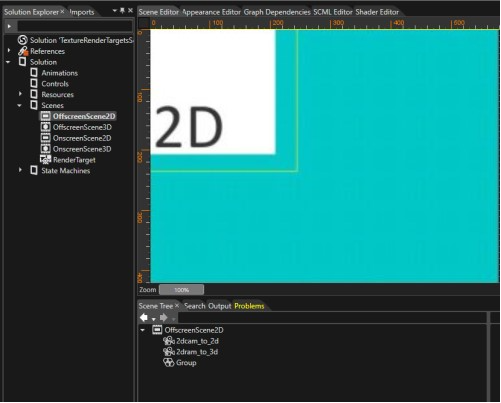
First of all, "offscreen" scenes must be defined, which shall later be rendered into textures:

<div class="contents" id="bkmrk-offscreenscene2d%3A-th"><div class="contents"><div class="textblock">- **OffscreenScene2D:** This 2D scene contains a white box with the text "2D" in it.
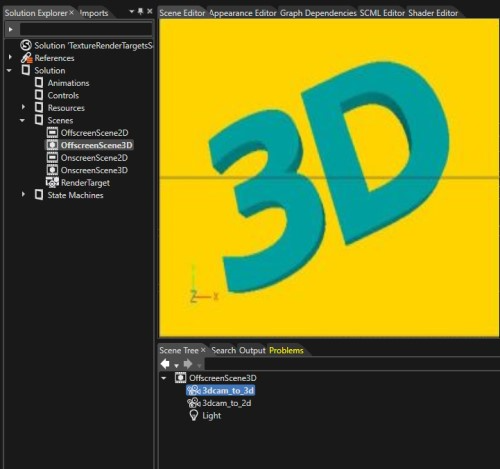
- **OffscreenScene3D:** This 3D scene contains a Text3DWidget with text "3D" and a light.

</div></div></div>##### <a class="anchor" id="bkmrk--12"></a>Offscreen Scene Cameras

Next, cameras must be defined for rendering the offscreen scenes into textures.

In case of the **OffscreenScene2D**, two different cameras are defined:

<div class="contents" id="bkmrk-2dcam_to_2d%3A-this-ca"><div class="contents"><div class="contents"><div class="textblock">- **2dcam\_to\_2d**: This camera will be linked to a **OffscreenRenderTarget2D**, for rendering into a 2D texture.
- **2dcam\_to\_3d**: This camera will be linked to a **OffscreenRenderTarget2Dto3D**, for rendering into a 3D texture.

</div></div></div></div><div drawio-diagram="2392"><img src="https://doc316en.candera.eu/uploads/images/drawio/2023-02/drawing-4-1677217476.png" alt=""/></div>

<div class="contents" id="bkmrk--0"><div class="contents"><div class="textblock">  
</div></div></div>Similarly, the **OffscreenScene3D** defines following two cameras:

<div class="contents" id="bkmrk-3dcam_to_3d%3A-this-ca"><div class="contents"><div class="contents"><div class="textblock">- **3dcam\_to\_3d**: This camera will be linked to a **OffscreenRenderTarget3D**, for rendering into a 3D texture.
- **3dcam\_to\_2d**: This camera will be linked to a **OffscreenRenderTarget3Dto2D**, for rendering into a 2D texture.

</div></div></div></div><div drawio-diagram="2394"><img src="https://doc316en.candera.eu/uploads/images/drawio/2023-02/drawing-4-1677217501.png" alt=""/></div>

<div class="contents" id="bkmrk--2"><div class="contents"><div class="textblock">  
</div></div></div>##### <a class="anchor" id="bkmrk--15"></a>Define Offscreen Render Targets

Finally, all the cameras from Offscreen scenes must be linked to the related offscreen render targets, for rendering the content of offscreen scenes:

<div class="contents" id="bkmrk-offscreentarget2d%3A-2"><div class="textblock">- **OffscreenTarget2D:** 2D render target for the text "2D"
- **OffscreenTarget2Dto3D:** 3D render target for the text "2D"
- **OffscreenTarget3D:** 3D render target for the text "3D"
- **OffscreenTarget3Dto2D:** 2D render target for the text "3D"
</div></div>#### **Use Texture Render Targets**   


##### <a class="anchor" id="bkmrk--16"></a>Use Texture Render Targets in a 2D Scene

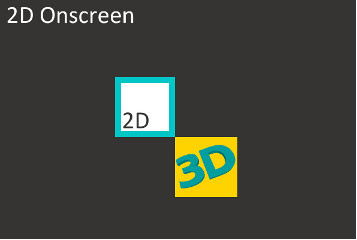
The 2D scene "OnscreenScene2D" is rendered on a DisplayRenderTarget2D and shall include the render outputs from both the 2D and 3D offscreen scenes.

For this, bitmap nodes are defined in this scene which use the following offscreen render targets as textures:

<div class="contents" id="bkmrk-offscreentarget2d-of"><div class="contents"><div class="contents"><div class="textblock">- **OffscreenTarget2D**
- **OffscreenTarget3Dto2D**

</div></div></div></div><div drawio-diagram="2397"><img src="https://doc316en.candera.eu/uploads/images/drawio/2023-02/drawing-4-1677217557.png" alt=""/></div>

<div class="contents" id="bkmrk--4"><div class="contents"><div class="textblock">  
</div></div></div>##### <a class="anchor" id="bkmrk--18"></a>Use Texture Render Targets in a 3D Scene

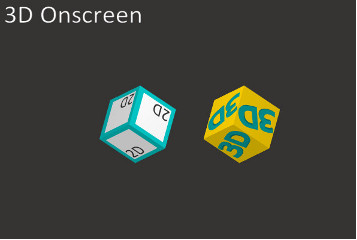
The 3D scene "OnscreenScene3D" is rendered on a DisplayRenderTarget3D and shall include the render outputs from both the 2D and 3D offscreen scenes.

For this, two cubes are defined in this scene which use the following offscreen render targets as textures:

<div class="contents" id="bkmrk-offscreentarget3d-of"><div class="contents"><div class="contents"><div class="textblock">- **OffscreenTarget3D**
- **OffscreenTarget2Dto3D**

</div></div></div></div><div drawio-diagram="2399"><img src="https://doc316en.candera.eu/uploads/images/drawio/2023-02/drawing-4-1677217572.png" alt=""/></div>

<div class="contents" id="bkmrk--6"><div class="contents"><div class="textblock">  
</div></div></div>##### <a class="anchor" id="bkmrk--20"></a>Composition Camera Property Set

The **Composition Camera** property of the DisplayRenderTarget3D and DisplayRenderTarget2D render targets must be set to the camera linked with RenderTargetOwner. These is mandatory for rendering the composed contend of the two display render targets.

<div class="contents" id="bkmrk-the-layer-property-m"><div class="textblock"><dl class="note"><dt></dt><dd><p class="callout info">The Layer property must be correctly set for Candera::SoftwareLayer render targets (DisplayRenderTarget3D and DisplayRenderTarget2D). The layers must have different values, with the lowest value for the lowest layer.</p>

</dd></dl></div></div>#### **Example Solution** 

Another example of using Texture Render targets can be seen in the tutorial solution *cgi\_studio\_player/content/Tutorials/07\_RenderTargetsCameras/MixedRenderTargetsSolution*.

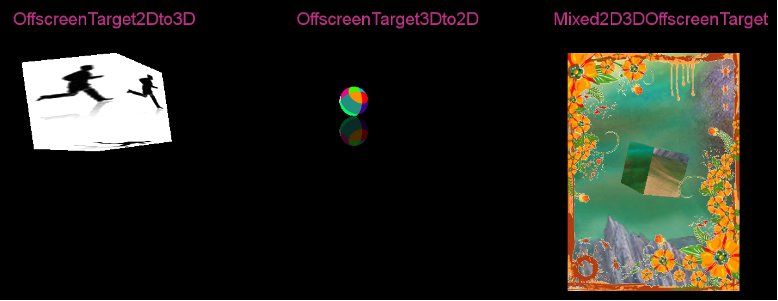
OffscreenTarget2Dto3D, OffscreenTarget3Dto2D and Mixed2D3DOffscreenTarget render targets are used as texture for 3D meshes or as Image for BitmapBrush effects. The Mixed2D3DDisplayTarget is linked to the display and can be used for 2D and/or 3D content. In the tutorial solution *MixedRenderTargetsSolution* there are two cameras (2D and 3D) attached to the Mixed2D3DDisplayTarget. The resulted image on display shows the content of the both scenes overlapped.

<div drawio-diagram="2401"><img src="https://doc316en.candera.eu/uploads/images/drawio/2023-02/drawing-4-1677217606.png" alt=""/></div>

<div class="contents" id="bkmrk-rules-to-configure-m"><div class="contents"><div class="contents"><div class="textblock"><dl class="note"><dt></dt><dd><p class="callout info">**Rules to configure multiple cameras attached to a render target** - Camera 2D: Clear Color Buffer = false; Enable Swapping = true  
- Camera 3D: Clear Color Buffer = true; Enable Swapping = false</p>

</dd></dl></div></div></div></div>The pictures from this tutorial where obtained from the following sources:

<a class="anchor" id="bkmrk--22"></a>\[1\] www.shutterstock.com/pic-12442312/stock-vector-a-business-man-runs-amp-power-walks-to-success-in-animation-sequence-frame-loops-with.html