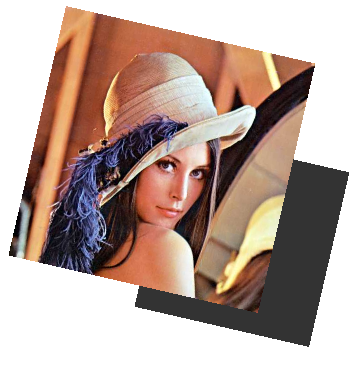
# 2D Shadow Effect
#### Description
This chapter briefly describes how to use the 2D shadow effect.
Ensure that this effect is supported by the device platform in use.
#### **2D Configure a Shadow Effect**
##### Shadow Effect
By using [Candera::ShadowBitmapBrushBlend](http://dev.doc.cgistudio.at/APILINK/class_candera_1_1_shadow_bitmap_brush_blend.html "Output a shadowed or glowing bitmap image, both shadow/glow and image alpha blended."), a colored shadow can be applied to a bitmap.
Following properties of the shadow can be configured:
- Color (including alpha value)
- Scale (the shadow size related to the bitmap)
- Position Offset (related to the bitmap)
Following is an example of a grey colored shadow, with a scale of 70% and an offset of 80/80 related to the bitmap:
Refer to [SceneComposer User Manual](https://doc316en.candera.eu/books/scene-design/page/effects) about how to configure a ShadowBitmapBrushBlend effect in a 2D scene.
#### **Modify 2D Shadow Effect Properties**
##### Access Shadow Effect
To modify the shadow effect properties, first the shadow effect needs to be retrieved from its render node:
```
// Get and cast first effect of render node
Effect2D* effect2D = renderNode->GetEffect(0);
ShadowBitmapBrushBlend* shadow = 0;
if (effect2D != 0){
shadow = (ShadowBitmapBrushBlend*) effect2D;
}
// End Get and cast first effect of render node
```
##### Set Shadow Color
Specify a color with a red, a blue, a green and an alpha component and apply the color to the Shadow Effect.
Example:
```
Color::Data c;
c.alpha = 0.5f;
c.blue = 0.0f;
c.green = 0.0f;
c.red = 1.0f;
shadow->ShadowColor().Set(c);
```
##### Set Shadow Scale
For the shadow's scale you need the scale X and Y value. Add the two values to a Vector2 and set the shadow's scale.
Example:
```
Float shadowScaleX = 0.7f;
Float shadowScaleY = 0.7f;
shadow->ShadowScale().Set(Vector2(shadowScaleX, shadowScaleY));
```
##### Set Shadow Position Offset
It is possible to change the position of the shadow by changing its offset to the node. Therefore you need a Vector2 with the X and Y offset values again.
Example:
```
Float shadowPosOffX = 5.0f;
Float shadowPosOffY = 7.0f;
shadow->ShadowPositionOffset().Set(Vector2(shadowPosOffX, shadowPosOffY));
```