# 2D HSL Effect
#### Description
This chapter briefly describes how to use the 2D HSL effect.
Ensure that this effect is supported by the device platform in use.
#### **Configure a 2D HSL Effect**
##### HSL Effect
The [BitmapBrushHslBlend](http://dev.doc.cgistudio.at/APILINK/class_candera_1_1_bitmap_brush_hsl_blend.html "Output a bitmap image, apply a HSL transformation, and blend it with the store buffer. Same as chaining (BitmapBrush + HslCorrectionEffect + BlendEffect)") effect outputs an bitmap image having applied hue, saturation and lightness correction and blended with the store buffer.
Following properties of a HSL effect can be configured:
##### Hue
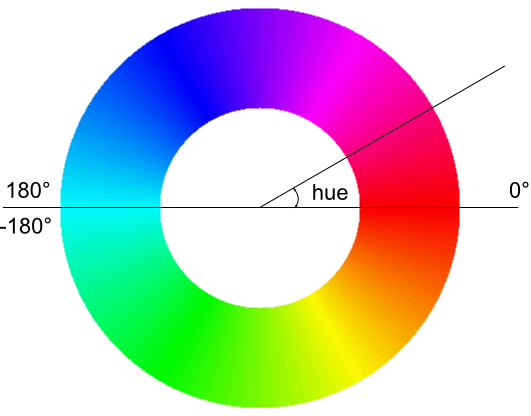
Hue is one of the main properties of a color, defined, technically, as the degree to which a stimulus can be described as similar to or different from stimuli that are described as red, green, blue, yellow, orange and violet. The image below shows the circle of hues for the color red (R=255, G=0, B=0).
On the HSL effect, the hue is expressed as degrees in the interval \[-180 .. 180\]; the original color is at a hue value of 0.
##### Saturation
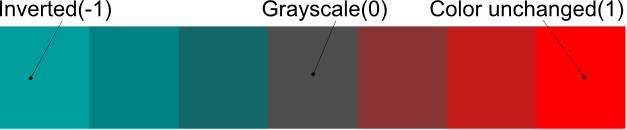
Saturation describes the intensity of a color, defined as a range from pure color to gray.
On the HSL effect, "0" means grayscale, "1" means color unchanged and "-1" means color inverted.
##### Lightness
Lightness measures the relative degree of black or white that's been mixed with a given hue.
On the HSL effect "0" means black, "1" means the color unchanged.
##### Example
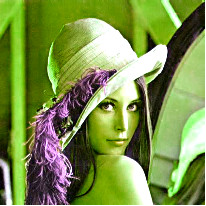
Following is an example of a HSL effect configured with hue = 120, saturation = -1 and lightness = 1.3:
Refer to [SceneComposer User Manual](https://doc316en.candera.eu/books/scene-design/page/effects) about how to configure a [BitmapBrushHslBlend](http://dev.doc.cgistudio.at/APILINK/class_candera_1_1_bitmap_brush_hsl_blend.html "Output a bitmap image, apply a HSL transformation, and blend it with the store buffer. Same as chaining (BitmapBrush + HslCorrectionEffect + BlendEffect)") effect in a 2D scene.
#### **Modify 2D HSL Effect Properties**
##### Set Hue, Saturation and Lightness
In order to change the BitmapBrushHslBlend effect properties, call the corresponding method on the HslCorrectionEffect as shown bellow:
```
m_bitmap_hslBlend = BitmapBrushHslBlend::Create();
m_bitmap_hslBlend->GetBitmapBrush().Image().Set(m_image.GetPointerToSharedInstance());
HslCorrectionEffect& hslCorrection = m_bitmap_hslBlend->GetHslCorrectionEffect();
hslCorrection.Hue() = 17.0F;
hslCorrection.Saturation() = -0.5F;
hslCorrection.Lightness() = 1.2F;
```