# Debugging Hints

#### <a class="anchor" id="bkmrk--3"></a>Debugging Player

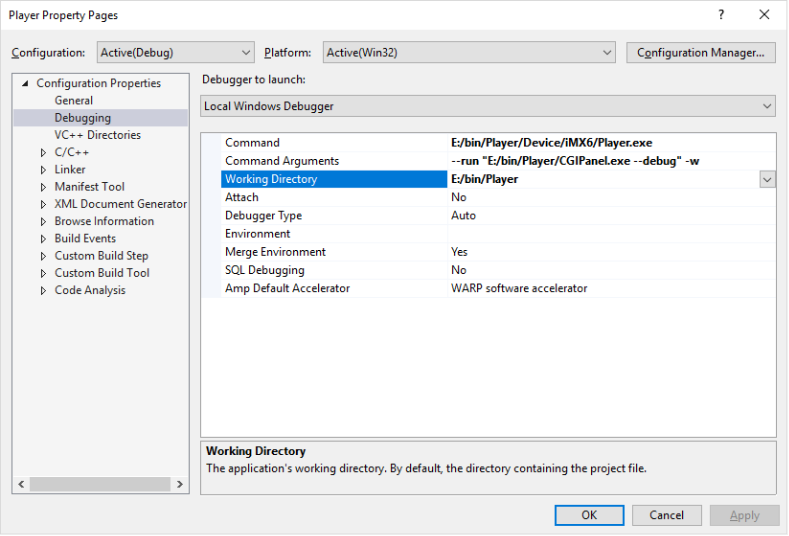
For debugging the Player set "Player" as startup project in the Player solution and start debugging.

With CMake, the required Debugging configurations are preconfigured as following:

<div drawio-diagram="1961"><img src="https://doc316en.candera.eu/uploads/images/drawio/2023-02/drawing-4-1676872549.png" alt=""/></div>

<div class="contents" id="bkmrk--0"><div class="contents"><div class="textblock">---

</div></div></div>#### <a class="anchor" id="bkmrk--5"></a>Debugging Widget Life Cycle in SceneComposer

For debugging widgets used in SceneComposer please execute the following steps:

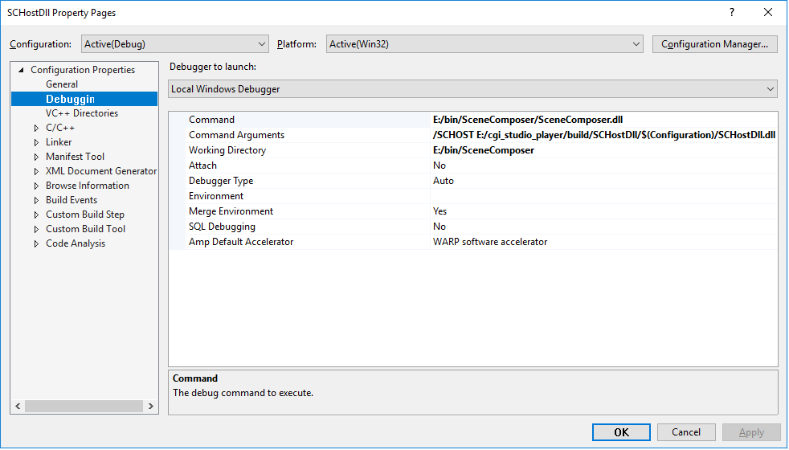
<div class="contents" id="bkmrk-set-schost-as-startu"><div class="contents"><div class="contents"><div class="textblock">- Set SCHost as startup project in the dev solution and edit the properties as shown below.

</div></div></div></div><div drawio-diagram="1962"><img src="https://doc316en.candera.eu/uploads/images/drawio/2023-02/drawing-4-1676872575.png" alt=""/></div>

<div class="contents" id="bkmrk--2"><div class="contents"><div class="textblock"></div></div></div>Set:

<div class="contents" id="bkmrk-debugger-type-to-nat"><div class="textblock">- Debugger Type to Native Only
- Command: The path to the file 'SceneComposer.dll' in your SceneComposer installation.

- After setting a breakpoint in a widget in the dev solution and pressing F5 (Debug), the breakpoint will get hit as soon as the widget is used by SceneComposer.

</div></div><div class="contents" id="bkmrk-debugging-with-scene"><div class="textblock"><dl class="note"><dd><p class="callout info">Debugging with SceneComposer only works while using a SCHost.dll including debug information! For this, take care that the CMake variable "CGIAPP\_SCENE\_COMPOSER\_PATH" is set to your SceneComposer executable, and compile in debug mode. All dll files required by SceneComposer will then be automatically deployed to your SceneComposer executable directory.</p>

</dd></dl></div></div>