# Mantis User Documentation
# Introduction
Mantis is the ticketing system used by Candera GmbH. By itself Mantis is seen as a bug-tracking tool, whereas most of the reported tickets are bugs that have to be fixed. The system can be found under the following URL: [http://support.cgistudio.at/](http://support.cgistudio.at/)
Please log in with your received login credentials.
# View tickets
To view the tickets please click on “View Issues” in the menu on the left side.
What is important is that only the issues of the currently selected project will be shown. The project can be selected in the top right corner next to the “Report Issue” button. For instance, if “CGI – Studio: Candera Engine” is selected as the current project only tickets that were reported in this project will be shown.
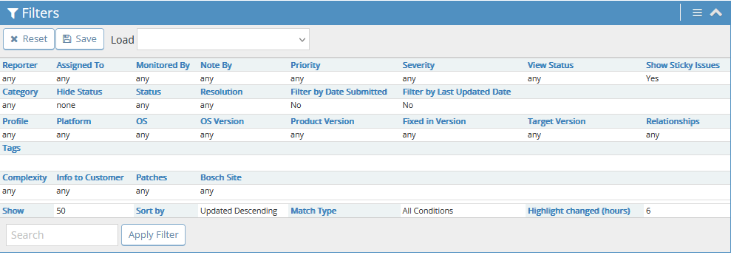
Filters can be applied for listing the issues. Please expand the filters section (first section) to be able to modify them. Plenty of attributes can be changed here to be able to filter the issues.
For instance if the issues assigned to a specific developer should be displayed please click on the field “Assigned To:” and choose the developer. If you click on “Apply Filter” the filtered issues will be displayed. A filter can also be saved by clicking on “Save Current Filter.” If the filter is saved it can be chosen in the drop-down list next to “Save Current Filter.”
# How to create a ticket
In the menu on the left side click on “Report Issue.”
For creating a ticket there are a couple of fields to fill. Some of them are mandatory (marked with \*), while the most of them are not. Although most of the fields are not mandatory it is recommended to fill them because the more information a developer has the better base he has for fixing the bug. This pertains especially to the field “Product Version.”
- Category: The category the ticket belongs to.
- Reproducibility: If a bug is reproducible or not.
- Severity: How hard is the impact of the bug not being fixed.
- Priority: How urgent a bug should be fixed
- Select Profile: The target hardware and operating system on which the bug occurs.
- Product Version: The product version in which the bug occurs. Although it’s not mandatory it is recommended to fill especially this field.
- Assign to: The developer that will get this ticket assigned.
- Target version: The version in which this bug should be fixed.
- Summary: A short summary of the issue.
- Description: A more detailed description of the issue.
- Steps to reproduce: Which steps are necessary to reproduce the issue.
- Additional Information: Can contain information about attached files, i.e.
- Attach Tags: Tags can be attached which allow an easier search for this ticket.
- Upload files: Attached files like screenshots, logs or e-mail-threads.
- Complexity: after estimating the ticket by Candera it is set to status Analyzed and the Complexity gives an estimate about the time needed for solving
- Low - up to 2 md and work absolutely clear
- Medium - up to one week, clear what to do
- High - more than one week or not yet clear in detail how to solve
Once all the necessary fields are filled please click on “Submit Issue” to submit the ticket.
# View ticket
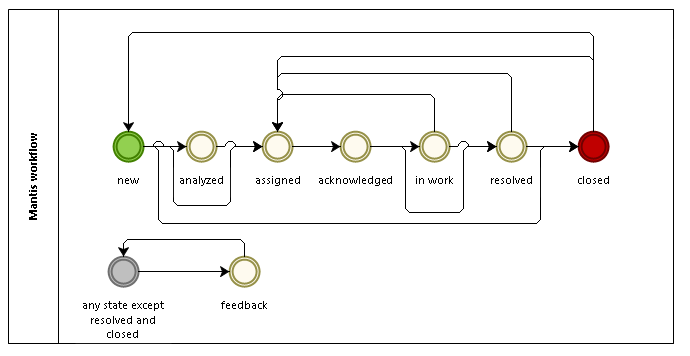
Once a ticket has been reported it can be viewed. If the status has not been set yet it will be set to “new.” This means that one way to find the ticket is to click on “View Issues” in the menu and sort the issued by “Status.” The newly created ticket can be found in the list.
The following figure shows the possible states of a ticket and how they depend among each other.
The view of a ticket contains some sections:
- View Issue Details: The fields that were filled at the creation time can be viewed here.
- Relationships: Tickets can be parented. The relations of the current ticket to its parent or children are shown here. Further wise it is also shown if a ticket is a duplicate of another one.
- Users monitoring this issue: Users can monitor an issue to see its history being changed. The monitoring users are listed here.
- Activities: Contains additional information if a comment has been added. Also, if a file has been added after creating the ticket it will be shown here.
- Add note: A note can be added which will afterwards be shown in “Activities.”
- Issue History: The changed of the issue can be tracked here.