# Widgets Using Controls
#### Widgets Using Controls
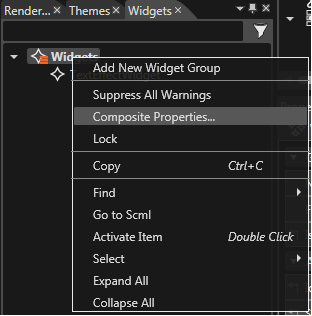
When a node from a control is set as value of a widget property, the option "Control Properties" becomes available in the context menu of the Widgets node.
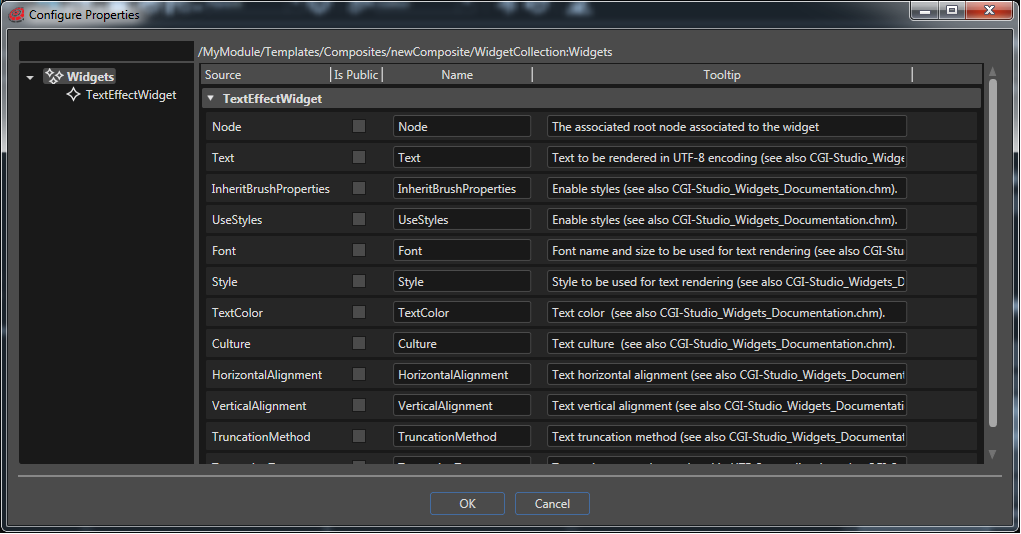
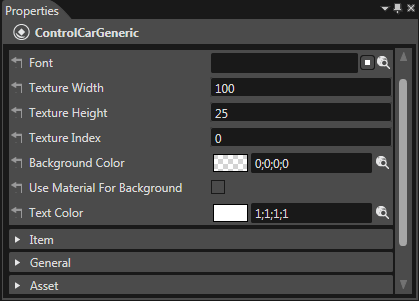
A new dialog "Configure Properties" opens where you can choose which properties of the widget should be available in the control. If necessary the user can use the fields available under the "Name" and "Tooltip" sections to introduce any useful piece of information. The values filled by the user in the "Configure Properties" dialog will be visible in the "Properties" panel.
When the control is used in a new scene, the widget's properties selected in the "Configure Properties" dialog will be available as Control's Properties and they will be editable in the Properties panel.
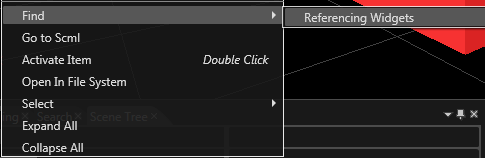
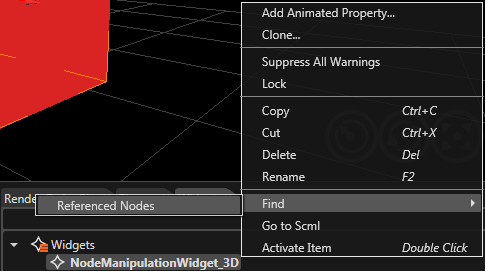
It is possible to search nodes referred by a widget having property types "Node" and to search widgets which use a node or its descendents as widget properties. For convenience purpose this functionality is also offered as a context menu on widgets and nodes.
Any referencing widget can be found by using the context menu via Scene Tree.
If a node is referenced by a widget, the node can be found by using the context menu via Widgets panel.