# New Animation
#### Create a new empty Animation
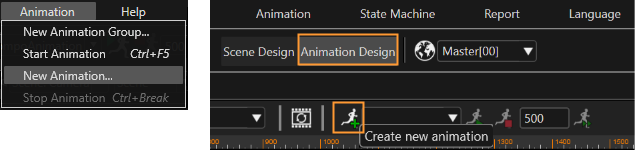
An empty animation can be created via "New Animation" menu item.
"New Animation" Menu "New Animation" Toolbar Item (only available if "Animation Design" is active)
If toolbar does not have the animation toolbar, to display them please select \[ View > Toolbars > Animation \] from the menu bar.
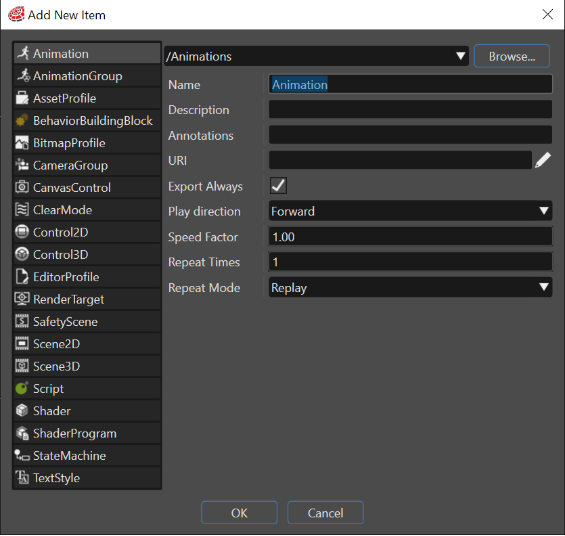
Alternatively use the Scene Explorer context menu to create a new animation via "Add" > "New item" option and select "Animation" item type.
The SpeedFactor (indicates the speed of running animation) and PlayDirection (indicates whether the animation will be played Forward - from first to last keyframes - or Reverse - from the last to first keyframes) properties can be set when the animation is created or later from the Properties panel.
"Add New Item" Animation
For information about how to create an animation from a template, please refer to section [Create Animation From Template](https://doc316en.candera.eu/link/27#bkmrk-page-title).
---
#### Create an Animation on a Specific Node
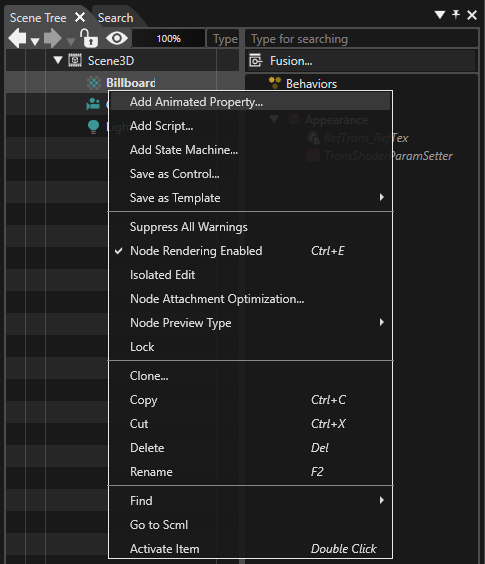
A new animation can also be created on a specific node in the Scene Tree panel: Use "Add Animated Property" context menu item to open the Property Animation Configuration dialog:
"Add Animated Property..." Context Menu Option
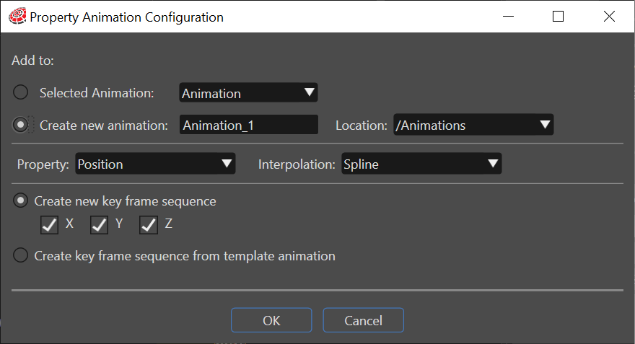
The "Property Animation Configuration" dialog allows to create either a new animation as a user-defined animation or from a template, or to simply add another animated property to an existing animation:
- Tick "Create new animation" to create a new animation for the selected node
- Untick "Create new animation" to add a new animation property to an existing animation.
Property Animation Configuration
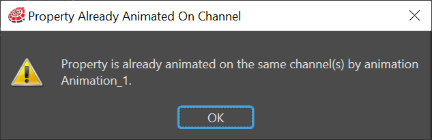
The same animated property is not allowed to be added for the same object in an animation more than one time, on the same channel. If such an addition is tried, the next message will appear: "Property is already animated on the same channel/channels by animation (name)."
"Property Already Animated On Channel" Message
---
#### Active Scene
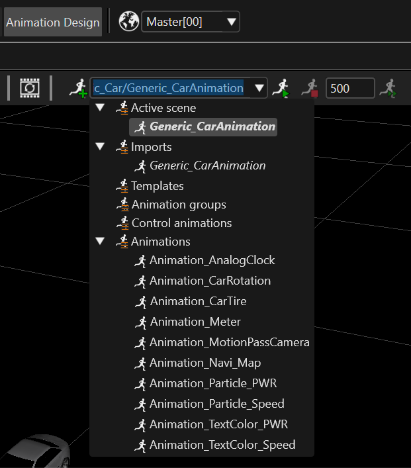
For every scene displayed in the Scene Editor, all the associated animations can be seen in the "Toolbar Animations Combobox" under the category "Active Scene".
"Active Scene" Category - Toolbar