# Animation Groups

#### Create an Animation Group  


Create a more complex animated sequence in a scene with Animation Groups. Multiple animations are grouped and can run simultaneously.

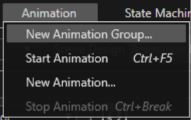
Create a new animation group using the menu item "New Animation Group" from the Animation menu.

<div drawio-diagram="5152"><img src="https://doc316en.candera.eu/uploads/images/drawio/2024-02/drawing-5-1706865030.png" alt=""/></div>

Created animation groups are displayed in the Solution Explorer panel like that:

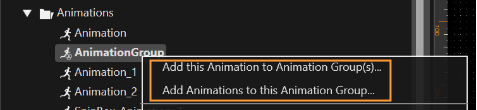
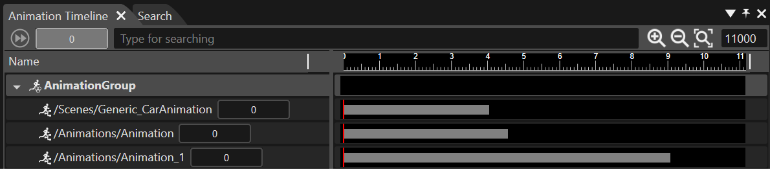
An animation group can be edited in the Animation Design view, with the Animation Timeline Editor. Drag animations from the Solution Explorer and drop them to the AnimationGroup in the Animation Timeline Editor. Another possibility is to use the "Add this Animation to Animation Group(s)..." option which is available in the context menu of every existing animation.

<p class="callout info">It is possible to select and drag simultaneously many animations into an animation group. When doing this operation, the user will be asked through the "Drop Animations" dialog if an animation chain has to be created.  
</p>

<div drawio-diagram="6405"><img src="https://doc316en.candera.eu/uploads/images/drawio/2024-07/drawing-5-1720176807.png" alt=""/></div>

You can also add both animations and animation groups to a specific animation group.

The main animation group is considered as the "root" and the group included inside as the "node".

<p class="callout info">It is not possible to include an animation group into another group, if it contains same animations as the root group.</p>

---

#### Control Animations  


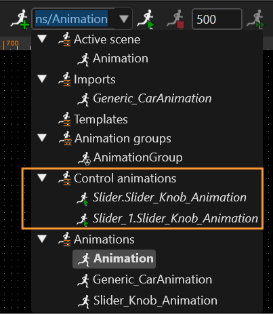
Control animations are displayed in "Control animations" category in the Animation combo box (in the toolbar).

<p class="callout info">If the Animation combo-box is not visible, it can be activated through the menu "View &gt; Toolbar &gt; Animation". </p>

<div drawio-diagram="6414"><img src="https://doc316en.candera.eu/uploads/images/drawio/2024-07/drawing-5-1720181741.png" alt=""/></div>

In the Solution Explorer there are two available commands to add items to an animation group. Right-click on an animation group offers the following possibilities in the context menu. The name of these command are self-explanatory:

<div drawio-diagram="6413"><img src="https://doc316en.candera.eu/uploads/images/drawio/2024-07/drawing-5-1720181728.png" alt=""/></div>

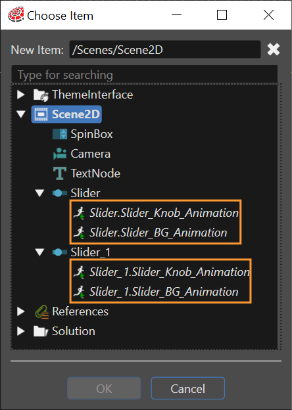
When adding animations to the selected Animation Group, "Choose Item" dialog also displays control animations, for each control. It may display also nested control animations that are made available.

The following types of animations can be included in an Animation Group:

- animations on nodes included in solution scenes;
- animations from folders;
- animations of controls which belong to at least one scene (if the control contains other controls, then the animations of the child control are also available).

<p class="callout info">It does not allow selection of : FBX animations, animations already included, groups containing already included animations, animations of controls which do not belong to any scene.  
</p>

The functionality of adding animations to an animation group allows multiple selection of: animations &amp; animation groups

<div drawio-diagram="6416"><img src="https://doc316en.candera.eu/uploads/images/drawio/2024-07/drawing-5-1720182209.png" alt=""/></div>

After a control animation is added, it behaves like any animation node. It inherits the "Delay" property and the "StartType" property if applicable.

<div class="contents" id="bkmrk-the-starttype-proper"><div class="textblock"><dl class="note"><dd><p class="callout info">The StartType property is only available if the animation has a predecessor, that means, if the animation is a child of another animation.</p>

</dd></dl></div></div>##### Animation Section in the Properties Panel

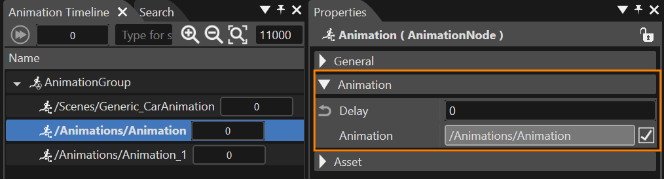
For animations specific properties, an *Animation* section is available directly after the *General* section in the Properties panel.

The Animation properties for a regular animation (inside an animation group) is organized as follows:

<div class="contents" id="bkmrk-delay%3A-if-a-componen"><div class="textblock">- *Delay*: If a component has a delay defined and its predecessor is started/finished, it will not be automatically started, but prepared for start.
- *StartType*: A component with a predecessor can be configured to start with its predecessor or after it is finished. This property is only available if a predecessor (parent animation) is defined (this means, if the animation is a child animation).
- *Animation*: displays the name of the node animation (read-only property).

</div></div><div drawio-diagram="6407"><img src="https://doc316en.candera.eu/uploads/images/drawio/2024-07/drawing-5-1720180546.png" alt=""/></div>

The Animation properties for a control animation (inside an animation group) are similar to the one above. Other read-only properties are available:

- *Control Animation:* The template animation;
- *Animated control node:* The control node that is animated by this animation node;
- *Chain. T*he template items for the animated control nodes, the nested control nodes and the control animations.

---

#### Simultaneous or Consecutive Animations  


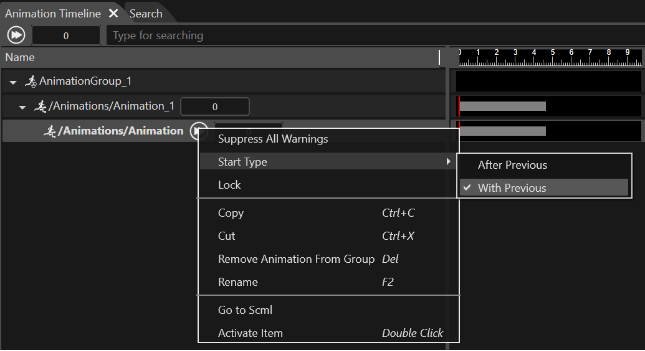
Animations inside an animation group, can be arranged hierarchically: An animation can be configured to be the "child" of another animation simply by dragging the "child" animation onto the "parent" animation in the Animation Timeline panel. The relation (child or parent) will be reflected by proper indeting of the animation titles in the Animation Timeline panel. A "parent" animation is the predecessor of its "child" animation.

Every animation that has a "parent" animation, has a property *StartType* in the Properties panel (*Animation* part).   
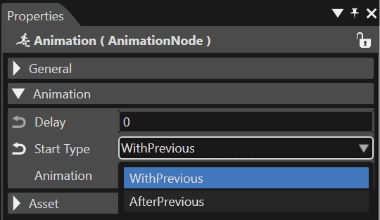
The *StartType* property can be configured for animations with a predecessor, defining the animation to start simultaneously with its predecessor or after the predecessing animation is finished.

The possible values of *StartType* are

<div class="contents" id="bkmrk-withprevious%3A-the-an"><div class="textblock">- *WithPrevious*: The animation will start simultaneously with the predecessing animation.
- *AfterPrevious*: The animation will start after the predecessing animation is done.

</div></div><div drawio-diagram="6417"><img src="https://doc316en.candera.eu/uploads/images/drawio/2024-07/drawing-5-1720183104.png" alt=""/></div>

<div drawio-diagram="6410"><img src="https://doc316en.candera.eu/uploads/images/drawio/2024-07/drawing-5-1720180821.png" alt=""/></div>

---

#### StartType Toggle Button Indicator

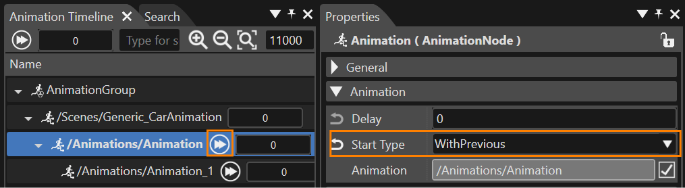
In the animation timeline in the left in the following picture, you can see that "Animation\_1" is the child animation of "Animation". In the Properties panel on the right, you can see the StartType property highlighted.

<div drawio-diagram="6409"><img src="https://doc316en.candera.eu/uploads/images/drawio/2024-07/drawing-5-1720180736.png" alt=""/></div>

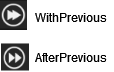
To easily toggle the StartType for the animation, the Animation Timeline provides a button, that also indicates the current configuration. It is highlighted in orange in the picture above.

<div drawio-diagram="6408"><img src="https://doc316en.candera.eu/uploads/images/drawio/2024-07/drawing-5-1720180646.png" alt=""/></div>

---

#### Limitations of Animation Groups  


Compared to AnimationPlayer, AnimationGroupPlayer does not have the following functions

- Specify the start time of the animation and the length of the animation
- Loop playback
- Reverse playback
- Speedup animation(a new feature available in CGI-Studio 3.9 or later)
- Jump to a specific point