# OpenGL Drop Shadow Effects

<p class="callout info"><a class="anchor" id="bkmrk--10"></a>Note that the OpenGL Drop Shadow Effects are OpenGL effects and only available on platforms supporting OpenGL.</p>

<p class="callout info">Be advised that the OpenGL Drop Shadow Effects are rendered twice and therefore consume performance.</p>

### <a class="anchor" id="bkmrk--11"></a>GlDropShadowBitmapBrushBlend

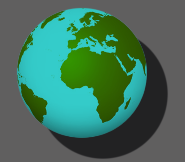
With this effect an image can drop a shadow that is defined by the alpha channel of the image, the shadow color, the light angle, distance and shadow scale.


<div drawio-diagram="2880"><img src="https://doc316en.candera.eu/uploads/images/drawio/2023-02/drawing-4-1677559909.png" alt=""/></div>

<div class="contents" id="bkmrk--0"><div class="contents"><div class="textblock"><div class="image">  
</div></div></div></div>##### <a class="anchor" id="bkmrk--13"></a>Image

Here you define the image that should be displayed. The image can be selected from the list of imported images in the "Choose Item" dialog.

<div drawio-diagram="2881"><img src="https://doc316en.candera.eu/uploads/images/drawio/2023-02/drawing-4-1677559931.png" alt=""/></div>

<div class="contents" id="bkmrk--2"><div class="contents"><div class="textblock"><div class="image">  
</div></div></div></div><div class="contents" id="bkmrk--3"><div class="contents"><div class="textblock">  
</div></div></div>##### <a class="anchor" id="bkmrk--17"></a>Shadow Color

The color of the shadow can be entered using the input fields. Alternatively, you can click on the color field on the left, which opens the <span style="color: rgb(230, 126, 35);">["Color Palette"](https://doc316en.candera.eu/link/603#bkmrk-color)</span> Window where you can pick the desired color from a color palette.

<div class="contents" id="bkmrk--4"><div class="contents"><div class="textblock"><div class="image"><div drawio-diagram="2884"><img src="https://doc316en.candera.eu/uploads/images/drawio/2023-02/drawing-4-1677560032.png" alt=""/></div>

</div></div></div></div>##### <a class="anchor" id="bkmrk--19"></a>More Shadow Properties

<div drawio-diagram="2885"><img src="https://doc316en.candera.eu/uploads/images/drawio/2023-02/drawing-4-1677560042.png" alt=""/></div>

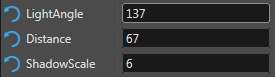
<div class="contents" id="bkmrk-light-angle%3A-angle-o"><div class="contents"><div class="textblock"><table border="0" style="width: 67.6191%; height: 88.4001px;"><tbody><tr style="height: 29.4667px;"><td style="width: 23.6418%; height: 29.4667px;">**Light Angle:** </td><td style="width: 76.2985%; height: 29.4667px;">Angle of virtual light that creates the shadow effect.</td></tr><tr style="height: 29.4667px;"><td style="width: 23.6418%; height: 29.4667px;">**Distance:** </td><td style="width: 76.2985%; height: 29.4667px;">Distance in pixels in which the shadow is cast at the given angle.</td></tr><tr style="height: 29.4667px;"><td style="width: 23.6418%; height: 29.4667px;">**Shadow Scale:** </td><td style="width: 76.2985%; height: 29.4667px;">The size of the shadow in pixels.</td></tr></tbody></table>

</div></div></div>##### <a class="anchor" id="bkmrk--21"></a>Blur Filter

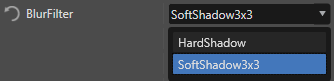
With this property the blurriness of the shadow can be defined. There are two options available:

<div class="contents" id="bkmrk-hardshadow-which-res"><div class="contents"><div class="textblock"><table border="0"><tbody><tr><td>**Hardshadow**</td><td>no blurring of the shadow at all</td></tr><tr><td>**SoftShadow3x3**</td><td>creates a soft blurry shadow</td></tr></tbody></table>

<div class="image"><div drawio-diagram="2886"><img src="https://doc316en.candera.eu/uploads/images/drawio/2023-02/drawing-4-1677560055.png" alt=""/></div>

  
</div></div></div></div>### <a class="anchor" id="bkmrk--23"></a>GlDropShadowBitmapBrushColorBlend

The OpenGL Drop Shadow Bitmap Brush Color Blend effect adds color blending to the <span style="color: rgb(230, 126, 35);">[GlDropShadowBitmapBrushBlend](#bkmrk-gldropshadowbitmapbr)</span> effect. This means, the visible image drops a configurable shadow and additionally, a color can be defined to blend the visible image with.

<p class="callout info"><span style="font-size: 10pt; line-height: 1.5;">This effect is designed for the use with the text. Do not use with any text cache type other than BitmapCache!</span></p>

<div class="contents" id="bkmrk--6"><div class="contents"><div class="textblock"><div class="image"><div drawio-diagram="2887"><img src="https://doc316en.candera.eu/uploads/images/drawio/2023-02/drawing-4-1677560078.png" alt=""/></div>

</div></div></div></div>##### <a class="anchor" id="bkmrk--25"></a>Color

This property defines the constant color for modulating all input color channels (RGBA). This means, the displayed image is blended with the color configured with this property according to the Blending options configured below.

##### <a class="anchor" id="bkmrk--26"></a>Blending Options

To configure the color blending, several color blend options are available.   
More details regarding color blending properties in CGI Studio can be found at the <span style="color: rgb(230, 126, 35);">[SolidColorBrushColorBlend effect](https://doc316en.candera.eu/link/603#bkmrk-blending)</span>.  
Further information about blending in general are given in chapter <span style="color: rgb(230, 126, 35);">[Blending](https://doc316en.candera.eu/books/2d-effects/page/blending)</span>.

##### <a class="anchor" id="bkmrk--27"></a>Drop Shadow Properties

The configurable properties for the dropped shadow are the same as for <span style="color: rgb(230, 126, 35);">[OpenGl Drop Shadow Bitmap Brush Blend](#bkmrk-gldropshadowbitmapbr)</span> effect:

<div class="contents" id="bkmrk-shadow-color-light-a"><div class="contents"><div class="contents"><div class="textblock">- Shadow Color
- Light Angle
- Distance
- Shadow Scale
- Blur Filter

</div></div></div></div>